How to Swap Faces in a Video Using AI (Step-by-Step Guide)
AI face swapping in video has moved from a niche research demo to a practical tool used by filmmakers, content creators, and marketers. The technology replaces one person's face with another in video footage while preserving the original motion, expressions, and lighting. Modern face swap models can produce results that are nearly indistinguishable from the original footage when set up correctly.
This guide covers the end-to-end process of swapping a face in video using AI, from preparing your inputs to troubleshooting common issues.
How AI Face Swapping Works
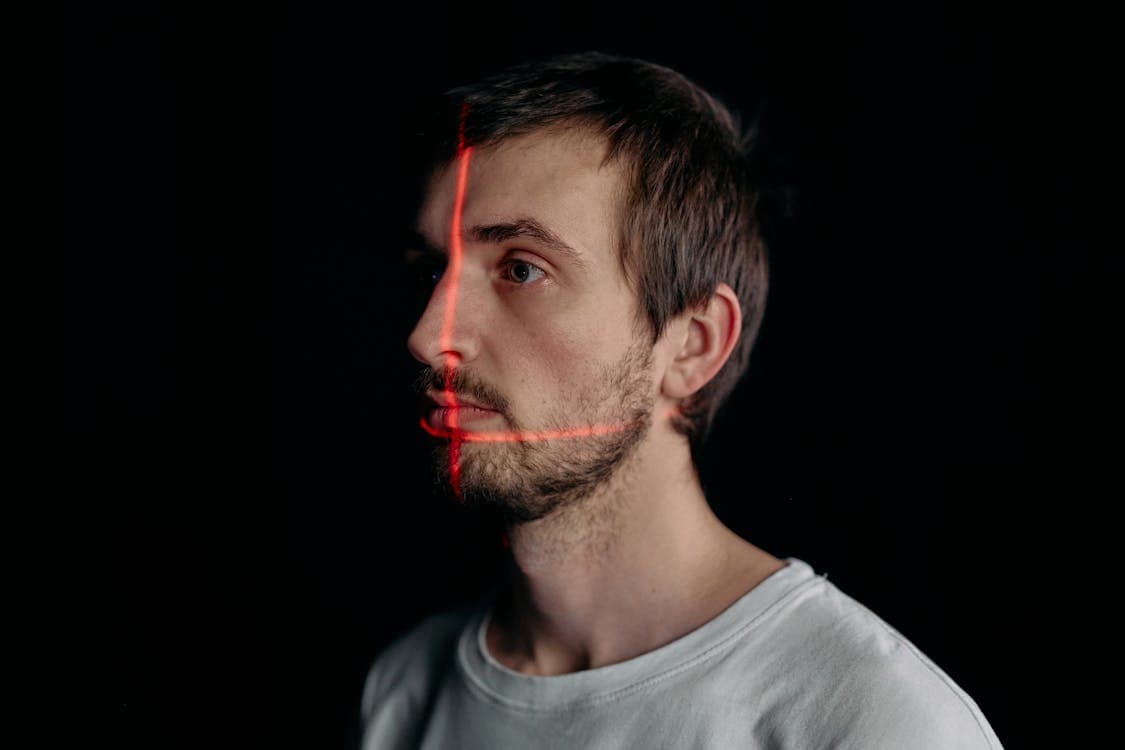
Face swap models use a combination of facial landmark detection, feature extraction, and generative neural networks. The AI first identifies key facial features in both the source face and the target video, including eye positions, nose shape, jawline, and mouth movement. It then generates a new face frame by frame that matches the geometry of the target while carrying the identity of the source.
Modern models handle this as a single pipeline rather than separate detection and synthesis steps. The result is smoother blending, better lighting adaptation, and fewer artifacts around the edges of the swapped face.
What You Need Before Starting
The quality of your inputs determines the quality of the output. You need two things: a clear face image (the identity you want to insert) and a target video (the footage where the face will be replaced).
- Source face image: A well-lit, front-facing photo at 512x512 pixels or higher. Avoid heavy shadows, sunglasses, or extreme angles. A neutral expression works best as the AI will generate expressions from the video.
- Target video: Clear footage with a visible face throughout. Consistent lighting and minimal motion blur produce the best results. 720p or higher resolution is recommended.
- Matching skin tone lighting: If your source face was photographed in warm indoor light but the video is outdoors in daylight, the AI will need to bridge that gap. Closer lighting conditions between source and target yield more natural results.
Step-by-Step Process
While specific interfaces vary across tools, the general workflow is consistent across most AI face swap platforms.
Step 1: Upload your source face image. Most tools accept JPG or PNG formats. Some allow multiple reference images of the same person from different angles, which improves accuracy. Step 2: Upload or select your target video. Shorter clips (under 30 seconds) process faster and are easier to review. Step 3: Configure output settings. Choose your resolution (SD or HD), and if available, adjust the blending strength. Higher blending creates a more seamless merge but may reduce detail. Step 4: Run the generation and wait for processing. Most AI face swaps take 1 to 5 minutes depending on video length and resolution. Step 5: Review the output frame by frame. Pay attention to edge blending around the jawline, expression accuracy during fast movements, and consistency in profile or side-angle shots.
Tips for Best Results
Lighting match is the single biggest factor in believable face swaps. A source photo taken in similar lighting conditions to the video will produce dramatically better results than one taken in different lighting. If you can control the photography of the source face, match the key light direction and color temperature to the video.
Face angle matters more than you might expect. While AI models can handle moderate angle differences, a front-facing source photo works best for videos where the subject frequently looks at the camera. For videos with lots of profile shots, including a side-angle reference image significantly improves quality.
Resolution scales with quality. Starting with a high-resolution source face and a high-resolution video gives the model more detail to work with. Upscaling a low-resolution source image before feeding it to the model rarely helps because the detail simply is not there.
Common Problems and Fixes
- Flickering between frames: Usually caused by inconsistent face detection. Try a video with more stable, front-facing footage. Some tools offer a temporal smoothing setting that reduces flicker.
- Visible edge artifacts: The boundary between the swapped face and the original neck/hair is the hardest part. Higher blending strength or a source photo with similar skin tone can reduce this.
- Expression mismatch: If the swapped face looks stiff or unnatural during speech, the source image may not have enough facial detail for the model to work with. Try a higher resolution source photo with a neutral, relaxed expression.
- Profile view distortion: Most face swap models perform best on front-facing or three-quarter views. Extreme side profiles are challenging. If your video has extended profile shots, some tools let you mark those segments for separate processing.
When Face Swapping Works Best
AI face swapping excels in controlled conditions: consistent lighting, clear face visibility, moderate head movement, and similar skin tones between source and target. It works well for dialogue scenes, interviews, presentations, and social media content where the subject is generally facing the camera.
It struggles more with extreme motion blur, heavy occlusion (hands covering the face, objects passing in front), rapid head rotation, and very low-resolution source material. For these cases, a full character swap that replaces the entire person rather than just the face may produce better results.